Showing posts with label How To. Show all posts

Tuesday, November 3, 2015

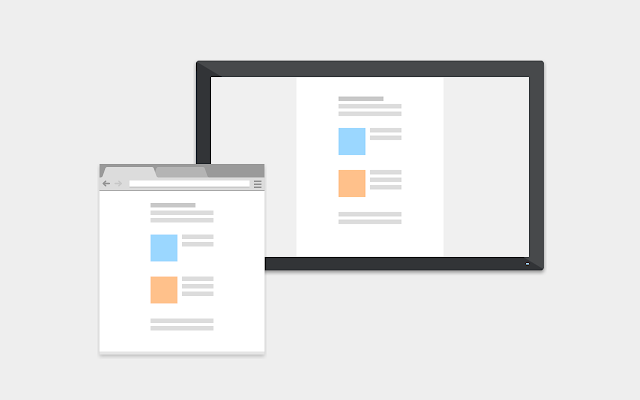
How To Easily Cast From Chrome Browser To Your TV?


I've been using the Chromecast for a few days now, and I have to say its a pretty interesting device.

So, you must have read the title and must have an idea what I'm going to do...

Today I'll show how to cast from your Chrome to your TV using a Chromecast.

To cast from Chrome, you simply need to have the Google Cast Extension installed on your Chrome Browser.


Once you’re set up to Use Chromecast with Chrome, casting a tab is just a few clicks away! To start casting a tab of your Chrome Browser:
  • Make sure you are on the tab you want to project to your TV.
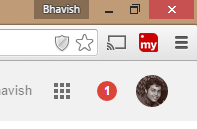
  • Press the Cast button in the Chrome toolbar (top right hand area) of your browser.
  • A list of available Chromecast devices will appear on your TV. Pick any device to cast the current tab to this device.
  • After a very brief load time, the current tab should appear on your TV!
  • You will see the Cast icon change color to indicate that it is active, and you’ll see a glow around the icon for the tab that is being shown.


If your Chromecast is currently in use – for example, it might already be playing a YouTube video – when you open the menu or select the device, you will see a short description of what Chromecast is doing, possibly with some controls (pause, mute, etc) for that activity. Click the ‘Cast this Tab’ button if you wish to terminate the current activity, and cast the current tab instead. This helps to ensure that you don’t accidentally pick the wrong device and interrupt another household member!

Follow Me on Twitter>>> @iamBhavish
And like us on Facebook>>> The Gud1

Friday, October 16, 2015

How to Stop Facebook Videos From Automatically Playing?


Facebook recently enabled autoplaying videos on its website and apps and this feature is the most annoying thing in the world.... After Bieber though!

I find it annoying especially because they start playing even when you're just scrolling down and don't pause at the video. It can waste data, and sometimes people will share videos that you would rather just not see, but avoiding them when they start playing in front of you without warning can be difficult.

It's actually possible to disable the autoplay quite easily, though the settings aren't very obvious at first glance. Don't worry though - whether you want to disable autoplaying videos on the Facebook website or Android or iOS apps, I've got you covered.

Follow these steps to stop Facebook videos from automatically loading and playing.

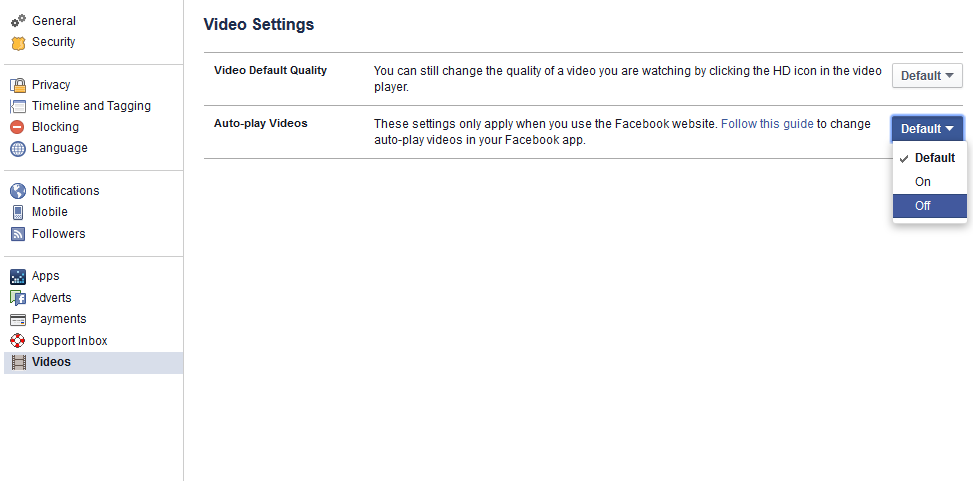
If you are using Facebook on the Web (desktop browser):

1) Go to Facebook's video settings page when you are logged into your Facebook account.

2) Click the button to the right of Auto-play Videos and choose Off from the drop down menu.

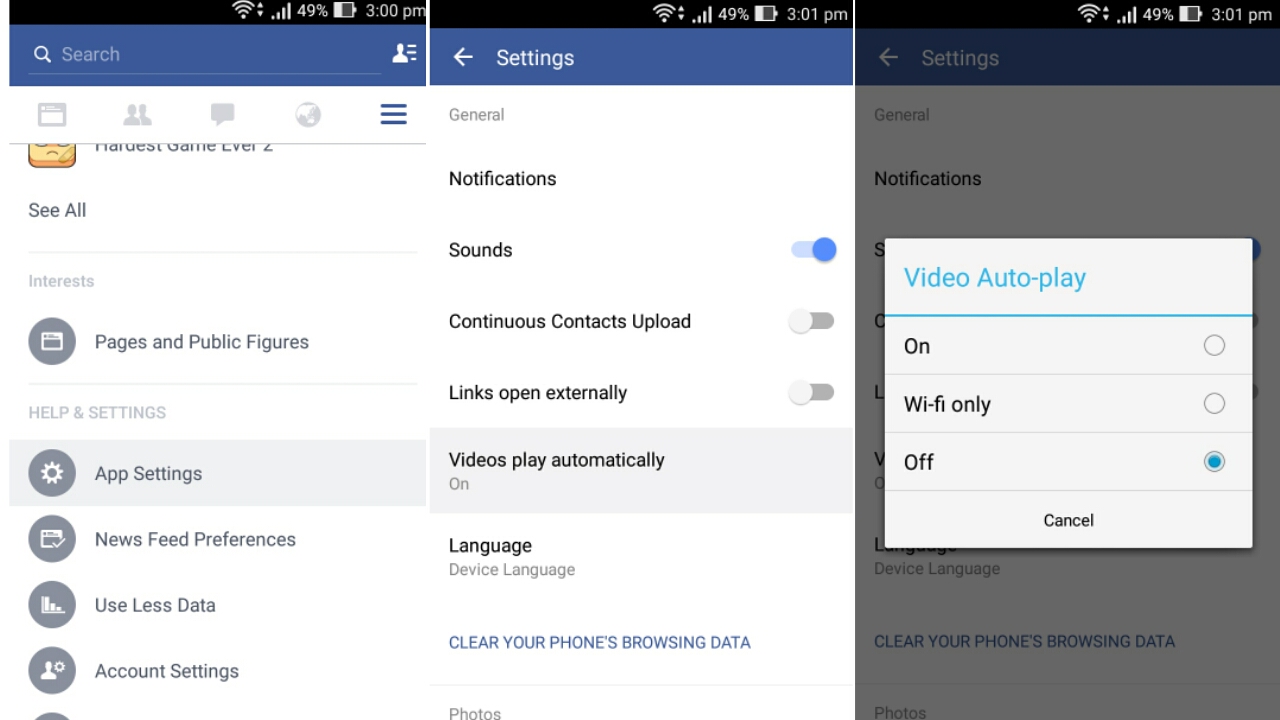
If you are using the Facebook app for Android, use the following steps to stop Facebook videos from autoplaying:


1) Tap the three horizontal lines icon.

2) Scroll down and tap App Settings.

3) Tap Video Auto-play.

4) Tap Off to stop videos from automatically playing, or Wi-fi only if it's okay for videos to autoplay when you are on Wi-Fi.

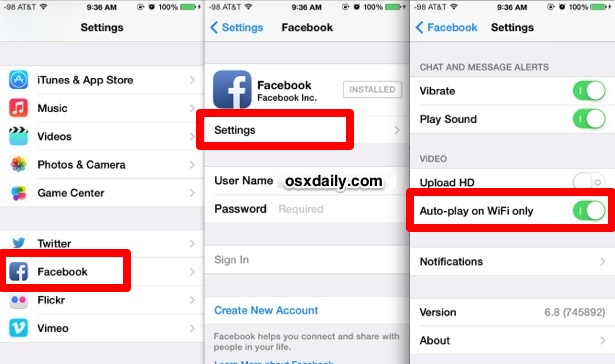
If you are using the Facebook app for iPhone, use the following steps to disable video autoplay:

1) Tap the three horizontal lines icon labelled More near the bottom right corner.

2) Scroll down and tap Settings.

3) Tap Account Settings.

4) Tap Videos and Photos.

5) Tap Auto-play.

6) Tap Never Auto-play Videos to completely stop Facebook videos from automatically playing, or On WiFi Connections Only if you don't mind videos autoplaying when you are on Wi-Fi.

If you are using the Facebook app for iPad, use the following steps to stop videos from automatically playing:

1) Tap the three horizontal lines icon labelled More near the bottom right corner.

2) Scroll down and tap Account Settings.

3) Tap Videos and Photos.

4) Tap Auto-play.

5) Tap Never Auto-play Videos to completely stop Facebook videos from automatically playing, or On WiFi Connections Only if you don't mind videos autoplaying when you are on Wi-Fi.

You have one less annoying thing in your life now that Facebook videos autoplay is disabled. For more tutorials, visit the How To section.

Follow Me on Twitter>>> @iamBhavish
And like us on Facebook>>> The Gud1

Wednesday, July 29, 2015

Microsoft’s Windows 10 launches today: Here’s a checklist to follow before you upgrade

Microsoft’s Windows 10 launches today: Here’s a checklist to follow before you upgrade

Microsoft is revamping Windows. It’s newest flavour of the Windows operating system launches today. 29 July is marked on many calendars across the globe. Given that it’s the first time Microsoft is making a major release a free upgrade, it’s quite interesting! There’s a catch though. All genuine users of Windows 7 and Windows 8.1 are eligible for the free upgrade for up to a year.

Eligibility check

According to Microsoft, the Windows 10 operating system will be available as a free upgrade for qualified devices running Windows 7 and Windows 8.1. Yes, for free!

You may be desperate to claim something that is available for ‘free’ on the first day itself. And you need to decide whether or not you want to. The launch day is tomorrow. But you might just want to wait it out.

Before you decide to upgrade it’s important to understand the real deal behind Windows 10.

Check your system specifications

If you decide to not wait it out and opt-in for the upgrade, you will need to ensure that you run the latest update of the operating system. If you run Windows 7, then you should have installed SP1. If you haven’t, you can download it here. Similarly, if you are on Windows 8, then the Windows 8.1 update is a must to be eligible for the upgrade to Windows 10.

The minimum hardware specifications to run Windows 10 are as follows:

Processor: 1 Gigahertz (GHz) or faster processor or SoC
RAM: 1 Gigabyte (GB) for 32-bit or 2 GB for 64-bit
Hard disk space: 16 GB for 32-bit OS or 20 GB for 64-bit OS
Graphics card: DirectX 9 or later with WDDM 1.0 driver
Display: 1024×600


How do you upgrade?

I'd written before on how you could reserve your update for the new Windows 10. Here's in short for readers who haven't read it.


Assuming you have weighed all factors that need to be considered, and have decided to upgrade to Windows, all you need to do is install the Get Windows 10 app.

You could click on the Windows icon on the Windows icon on the system tray (at the right end of the taskbar).

Once you click on the same, you can Reserve your free upgrade!

What if you don’t upgrade?

You can still buy Windows 10! Windows 10 Home edition will cost you $119 (Rs 7,000 approximately). In comparison, Windows 10 Pro edition will cost you $199 (Rs 12,000 approximately). If you prefer upgrading from the Home edition to the Pro edition, you can opt for a Windows 10 Pro Pack at $99 (Rs 6,000 approximately).

Follow ME on Twitter>>> @iamBhavish
And like us on Facebook>>> The Gud1
Sunday, July 26, 2015

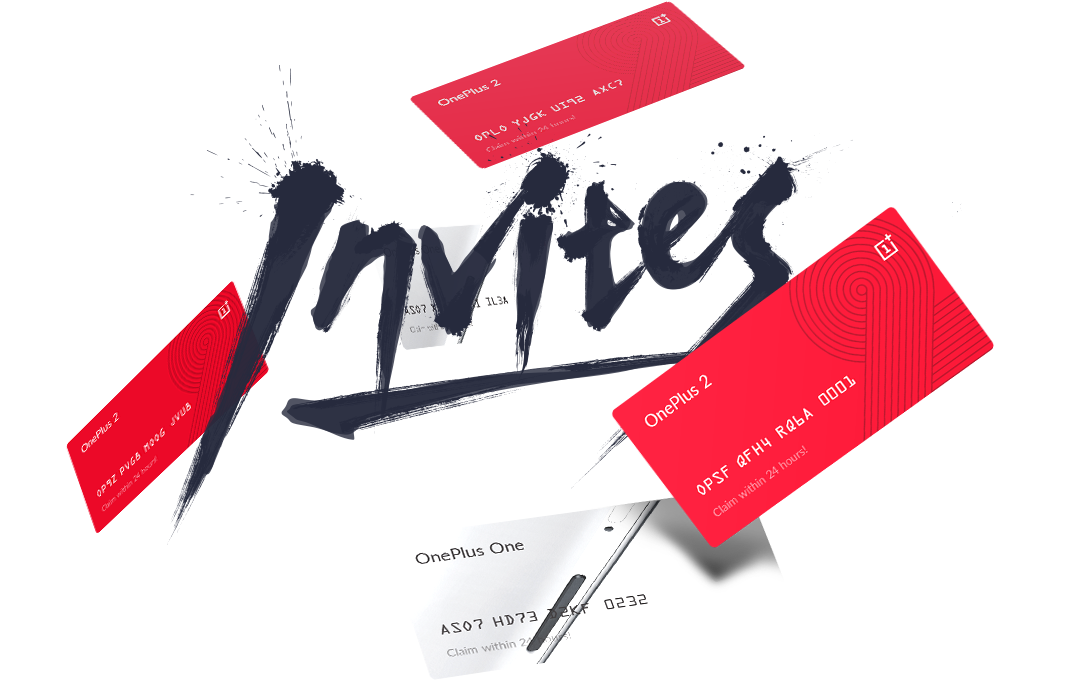
OnePlus 2: Invite system opens, here’s how you could secure your invite!

OnePlus 2: Invite system opens, here’s how you could secure your invite!
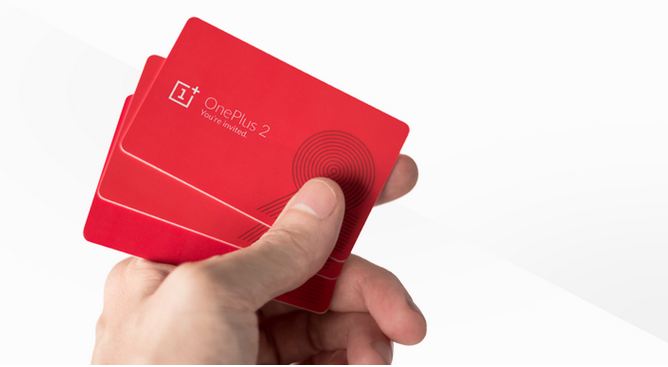
A few days ago, OnePlus had sent out official invites for the India launch event of its next flagship device the OnePlus 2. Those who can’t make it to the event, could witness the launch via Google Cardboard in the world’s first VR launch event.


In a post on its forum, OnePlus said, “As Carl has already mentioned, invites are still a necessity, but we’re striving to make the process as painless as possible thanks to more inventory, a reservation list, and a quicker rollout of shareable invites.”

In this post I explain how users could get their invite to the OnePlus 2.
According to the post, “early and most fervent supports will be prioritised” in the first month. Considering that the device is launching tomorrow, the invitation will be extended to existing fans of OnePlus through the month of August.


Also, all those who were early adopters and “fervent supporter” will be given priority. OnePlus will also be recognising the contribution of all those who helped spread the word around OnePlus One and taking it “from an unknown company to where we are today”.

The post adds, “Specifically, I’m talking about phone smashers, early forum members, early purchasers and the most active OnePlus One invite evangelists. We want to show you our gratitude by offering you some of the first invites to purchase the OnePlus 2.”

Finally, for everyone else, “Don’t worry, we haven’t forgotten about everyone else — all our fans are important to us. There will be a variety of ways to get invites, you’ll have to work for it in contests and/or other promotions– but you will receive the invites quickly. Stay tuned on the forums and social media or subscribe to our newsletter for more information about events.”


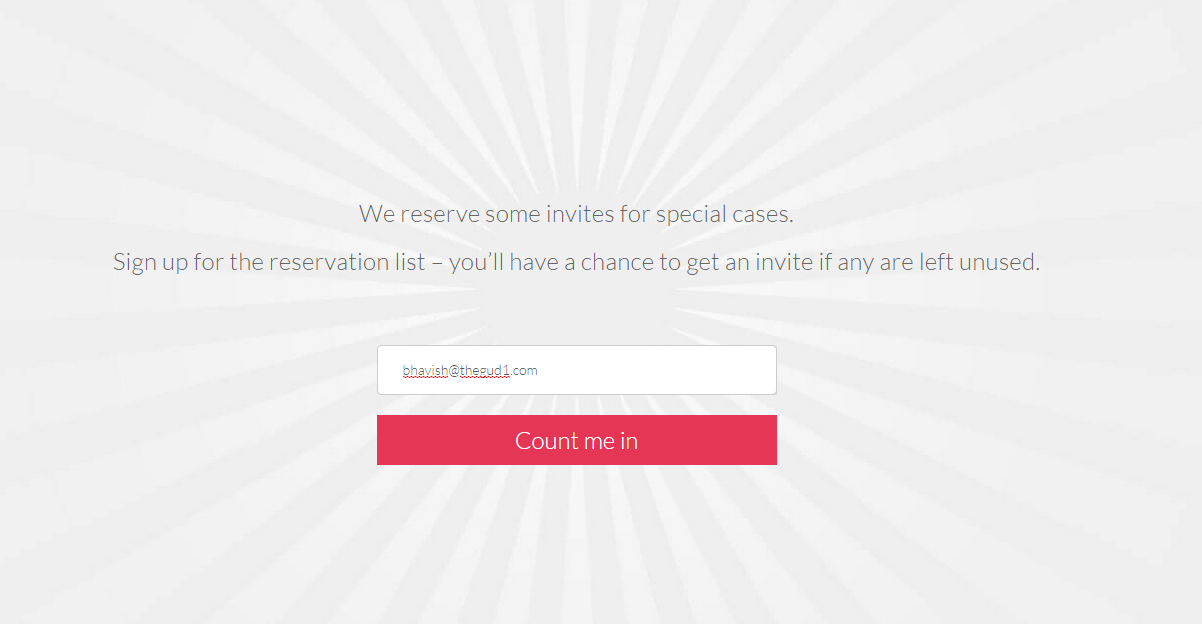
There are also plans for a first come first serve basis rollout of the invitation system. The post explains, “For those who just want to receive an invite when we have stock, we’ve also created the new reservation list. This list will move on a first come first serve basis. Every day, we will evaluate our production and inventory situation to send out as many of these invites as possible. No hassles. Just put down your email address and wait for the invite to come. Everyone on the list will eventually receive an invite.”

Follow ME on Twitter>>> @iamBhavish
And like us on Facebook>>> The Gud1